Porchlight Slideshow › Retirements
Retirement slideshows
Thirty-five years on the job, and what comes next
A retirement party is a thank-you. Porchlight turns photos of a career and the people in it into a slideshow for the party, timed to the music.
Free to download and try · $39 once to share your slideshow · Mac & Windows
Making a retirement slideshow
Retirement slideshows are made by coworkers or family, often in secret, for the office party or the dinner. They're funny and moving at once: the old badge photo, the holiday parties, the team through the years.
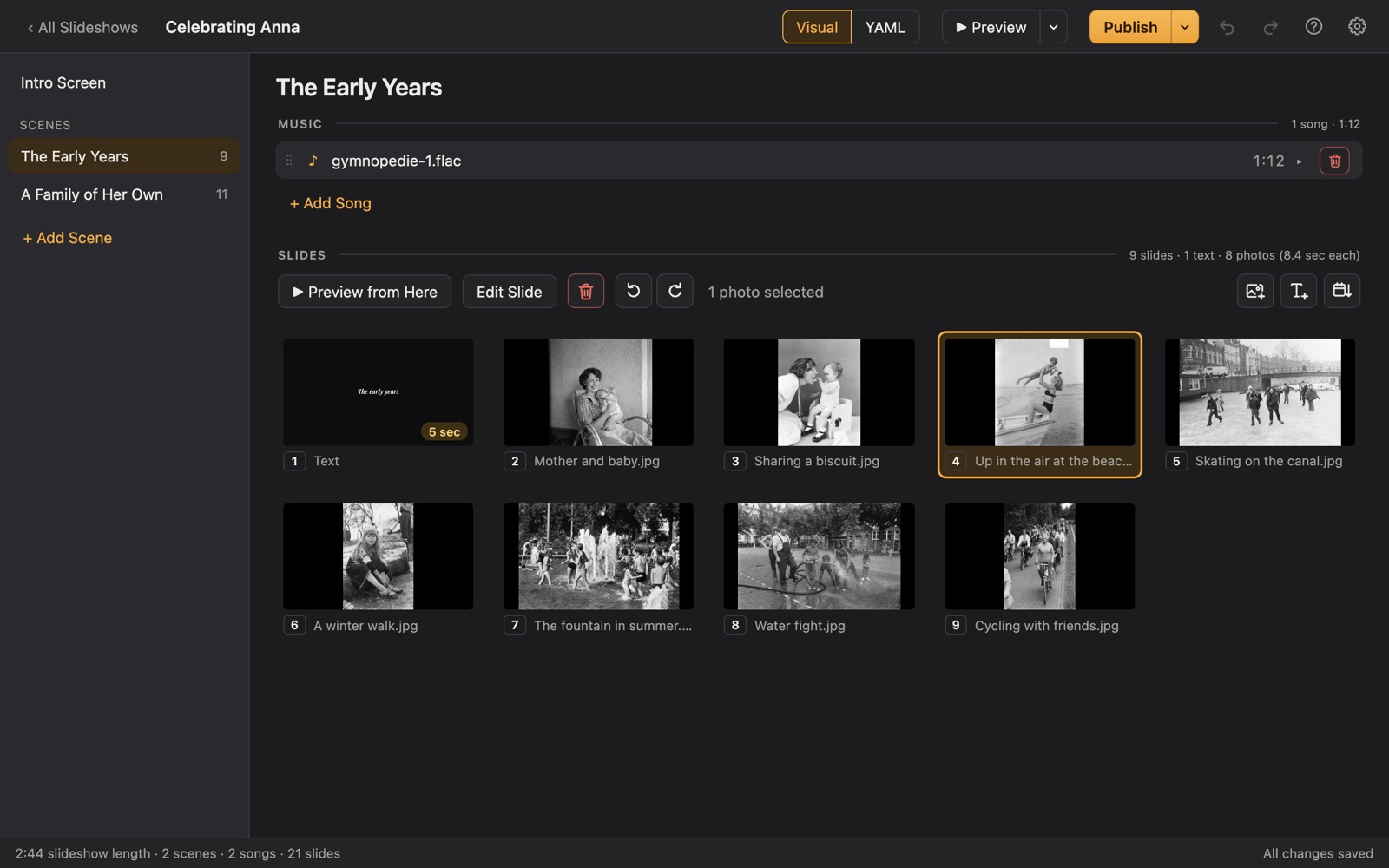
Collect photos from colleagues, drag them into Porchlight, and add a scene for each job or era with its own song. Play it on the conference-room screen from a USB stick, or export a video.
A plan
A plan for a retirement slideshow
Each scene gets its own music in Porchlight, so the songs change with the story.
The early days
The first job, the old ID badge, the haircut from 1989.
The career
Promotions, projects, the teams, the office moves.
The people
Colleagues, customers, the lunch crowd, and messages from coworkers on text slides.
Life outside work
Family, hobbies, the vacations they kept postponing.
What's next
The boat, the grandkids, the golf course, and a send-off from everyone.
Tips
Tips
- Ask HR or longtime colleagues for old photos from company events.
- Keep it respectful and fun: a few gentle jokes on text slides go a long way.
- If it's a surprise, ask the family for personal photos and invite them to the party.
- Test on the conference room's computer, or export a video to be safe.
How long should it be?
5 to 8 minutes: about 50 to 90 photos with 2 or 3 songs.
Choosing music for a retirement slideshow
- Songs from the year they started work.
- Their favorite music, which colleagues may not know about.
- Something upbeat for the next chapter, to finish.
Porchlight plays MP3, WAV and FLAC files you have; it doesn't provide music. You're responsible for having the right to use the music and photos in your slideshow, whether you're building, publishing, uploading, playing or sharing it.
How it works
Your retirement slideshow in three steps
Drag in the photos
From a folder or the Photos app. Sort them by the date they were taken with one click, or arrange them by hand.
Add the music
Give each scene its songs. Porchlight fits the photos to the music, so the last photo fades out as the last note ends.
Play it anywhere
Put it on a USB stick with the free Player, or save it as an HD or 4K video.
At the party
Put it on a USB stick with the free Porchlight Player for the office Mac or PC, which runs it without installing anything, or export an HD video.
Questions
Good to know
Can it run on a locked-down work computer?
Often, yes: the Player runs straight from the USB stick without installing. If the computer blocks programs from USB sticks, export a video and play it in the computer's own video player.
Is Porchlight Slideshow free?
You can download it free and build and preview your whole slideshow. A one-time $39 license lets you publish it to a USB stick and export it as a video, with no subscription. Porchlight Player, for watching, is always free.
Are my photos uploaded anywhere?
No. Porchlight works entirely on your own computer, with no account and no internet needed.
Start your retirement slideshow tonight
Download Porchlight Slideshow free, build your slideshow and preview it full screen. Pay once, only when it's ready to share.
More occasions